Plugins and Marketplaces
- 1 Installing Claude Code
- 2 Using the Claude Code TUI
- 3 CLAUDE.md and Settings
- 4 Skills, Agents, and MCP Servers
- 5 Hooks
- 6 Plugins and Marketplaces
- 7 Agent Teams
- 8 Connecting to Other Providers
Introduction
Throughout this series we’ve covered skills, agents, hooks, and MCP servers as individual components. Plugins are how you package all of these together into a single distributable unit, and marketplaces are how you discover and install them.
If you haven’t read the earlier guides: Installing Claude Code, Using the Claude Code TUI, CLAUDE.md and Settings, Skills, Agents, and MCP Servers, Hooks.
What is a Plugin?
A plugin is a directory that bundles any combination of skills, agents, commands, hooks, and MCP server configurations into a single package. It has a plugin.json manifest that describes what it contains and how it should be loaded.
my-plugin/
  plugin.json           # Manifest
  skills/
    my-skill/
      SKILL.md
      references/
      scripts/
  agents/
    my-agent.md
  commands/
    my-command.md
  hooks/
    hooks.json
  .mcp.json             # MCP server configs
The plugin.json declares the plugin’s metadata:
plugin.json
{
  "name": "my-plugin",
  "description": "A plugin that does useful things",
  "version": "1.0.0",
  "author": "Your Name"
}
Claude Code auto-discovers the components inside the plugin based on the directory structure — skills in skills/, agents in agents/, commands in commands/, hooks in hooks/hooks.json, and MCP configs in .mcp.json.
The Official Marketplace
Anthropic maintains an official marketplace of curated plugins. You can browse it at the Claude Code GitHub repository where the marketplace manifest lives at .claude-plugin/marketplace.json.
The official marketplace includes plugins maintained by Anthropic and vetted community contributions. Official marketplace plugins auto-update by default, so you always get the latest versions.
Installing Plugins
There are two ways to install plugins: through the TUI or via settings.json.
Installing via the TUI
The easiest way. Use the /plugins slash command to browse and install from configured marketplaces:
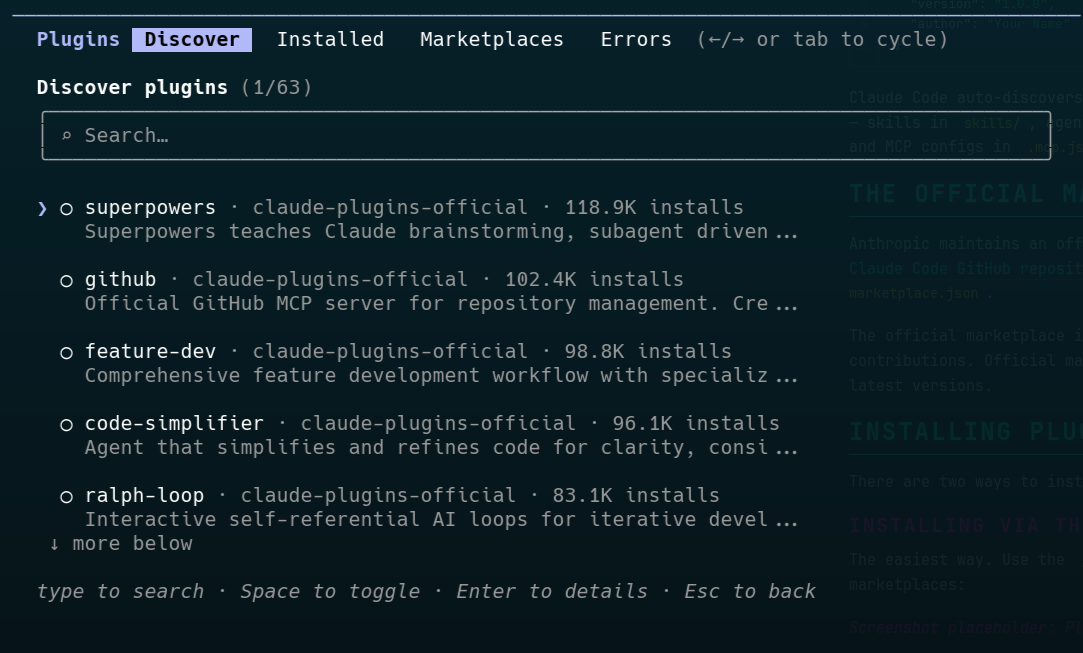
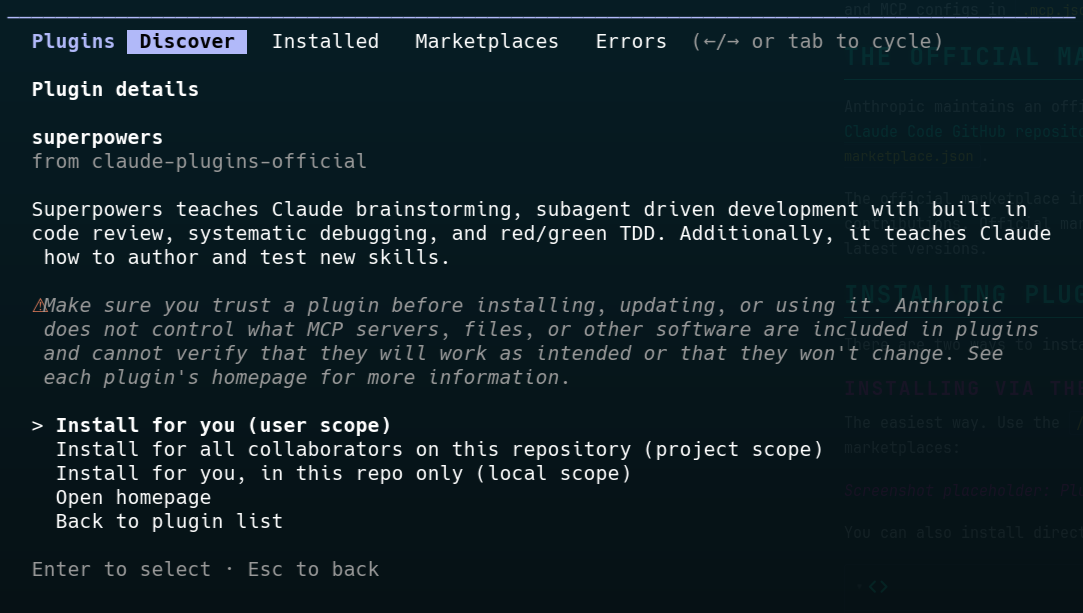
You can also install directly with the slash command:
/plugin install plugin-name@marketplace-nameOr from the CLI before starting a session:
Managing Plugins in the TUI
Once installed, you can manage plugins with these commands:
/plugin disable plugin-name@marketplace-name
/plugin enable plugin-name@marketplace-name
/plugin uninstall plugin-name@marketplace-name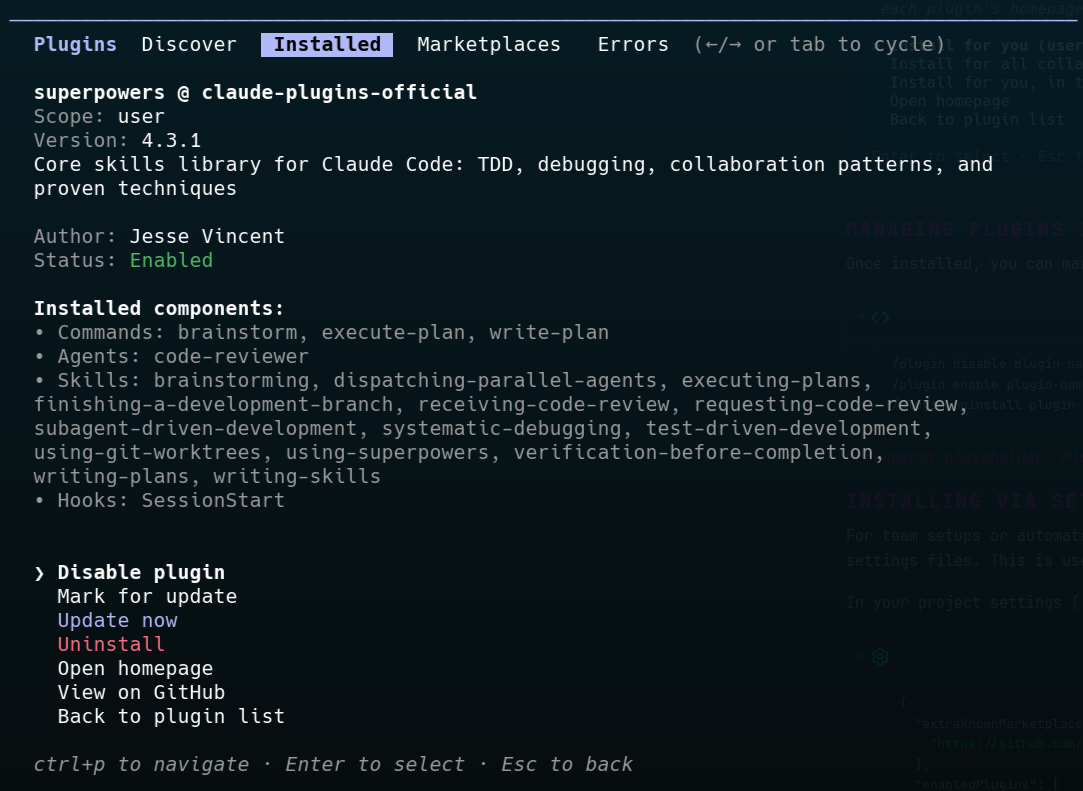
Installing via settings.json
For team setups or automated configuration, you can declare plugins directly in your settings files. This is useful when you want everyone on a project to use the same plugins.
In your project settings (.claude/settings.json):
.claude/settings.json
{
  "extraKnownMarketplaces": [
    "https://github.com/your-org/your-marketplace.git"
  ],
  "enabledPlugins": [
    "plugin-name@marketplace-name"
  ],
  "permissions": {
    "allow": ["Read(*)"],
    "deny": []
  }
}
The extraKnownMarketplaces field adds marketplace repositories beyond the official one. The enabledPlugins field pre-enables specific plugins for the project.
Installation Scopes
Plugins can be installed at different scopes, just like settings:
| Scope | Settings file | Use case |
|---|---|---|
| User | ~/.claude/settings.json | Personal plugins, available across all projects (default) |
| Project | .claude/settings.json | Team plugins, committed to the repo |
| Local | .claude/settings.local.json | Personal project overrides, gitignored |
| Managed | System-level managed settings | Organisation-wide plugins (read-only) |
Install to a specific scope with the --scope flag:
Plugin Sources
Marketplace plugins can come from several source types:
| Source | Format | Example |
|---|---|---|
| Relative path | ./ prefix | Local plugins within the marketplace repo |
| GitHub | repo, ref, sha | Pinned to a specific repo and commit |
| Git URL | URL ending .git | Any git repository |
| npm | package, version | Published npm packages |
| pip | package, version | Published Python packages |
For team setups where reproducibility matters, GitHub sources with pinned ref and sha ensure everyone gets the exact same version:
{
  "name": "my-plugin",
  "source": {
    "type": "github",
    "repo": "your-org/your-plugin",
    "ref": "v1.2.0",
    "sha": "abc123def456"
  }
}
Creating a Marketplace
If you want to distribute your own plugins — whether for your team or publicly — you create a marketplace. A marketplace is simply a git repository with a .claude-plugin/marketplace.json file at its root:
.claude-plugin/marketplace.json
{
  "name": "my-org-marketplace",
  "owner": {
    "name": "My Organisation"
  },
  "description": "Internal plugins for our engineering team",
  "plugins": [
    {
      "name": "our-deploy-plugin",
      "description": "Deployment workflows and safety checks",
      "source": {
        "type": "relative",
        "path": "./plugins/deploy"
      },
      "version": "1.0.0"
    },
    {
      "name": "our-testing-plugin",
      "description": "Testing conventions and fixtures",
      "source": {
        "type": "github",
        "repo": "my-org/testing-plugin",
        "ref": "main"
      }
    }
  ]
}
Push this to a git repo and anyone can add it as an extra marketplace in their settings.
GITHUB_TOKEN, GITLAB_TOKEN, BITBUCKET_TOKEN) for authenticating to private repos. This makes it easy to distribute internal plugins within your organisation.Auto-Updates
Plugin update behaviour depends on the source:
- Official Anthropic marketplace plugins auto-update by default.
- Third-party marketplace plugins do not auto-update by default.
You can control this with the CLAUDE_CODE_AUTO_UPDATE_PLUGINS environment variable. For pinned versions in team setups, use the ref and sha fields in the source to lock to a specific version.
Plugins are cached at ~/.claude/plugins/cache/, so they don’t need to be fetched on every session.
Local Plugin Development
When developing a plugin locally, you can test it without publishing to a marketplace:
This loads the plugin from the local directory for that session. You can iterate on the plugin’s skills, agents, hooks, and commands and see the changes immediately.
You can also validate your plugin’s structure:
Cross-Tool Compatibility
Claude Code’s plugin format is also recognised by GitHub Copilot CLI, making it possible to build plugins that work across both tools. If your team uses a mix of Claude Code and Copilot, a single plugin repository can serve both.
Enterprise Plugin Management
For enterprise deployments, administrators can control which marketplaces and plugins are available:
strictKnownMarketplacesin managed settings restricts which marketplaces users can install from. SupportshostPatternfor regex matching against allowed hosts.enabledPluginsin managed settings pre-enables specific plugins organisation-wide.allowManagedHooksOnlyrestricts hooks to only those defined in managed settings, preventing users from adding their own.
This gives security teams control over what code runs in Claude Code sessions while still letting engineering teams benefit from plugins.
Wrapping Up
Plugins tie together everything we’ve covered in this series — skills, agents, hooks, commands, and MCP servers — into distributable packages. Marketplaces make them discoverable and manageable.
For most people, the workflow is simple: browse the official marketplace, install plugins that look useful, and you’re done. For teams, creating a private marketplace lets you share internal tooling across the organisation. And for plugin authors, the format is straightforward enough that you can package and distribute your own workflows.
The next guide covers agent teams — coordinating multiple Claude Code instances working in parallel on complex tasks.